
Getting Started: Environment Comparison Dashboard
What This Tab Answers
Section titled “What This Tab Answers”- Which resources are drifted between environments?
- Which dataset currently has the highest variance?
- Which rows should be exported for release or incident review?
Where to Open
Section titled “Where to Open”MuleSight Dashboard -> Environment Comparison
Walkthrough
Section titled “Walkthrough”Step 1: Set dataset and environment scope
Section titled “Step 1: Set dataset and environment scope”Start with API Manager, choose organization and environments, and review baseline row state.
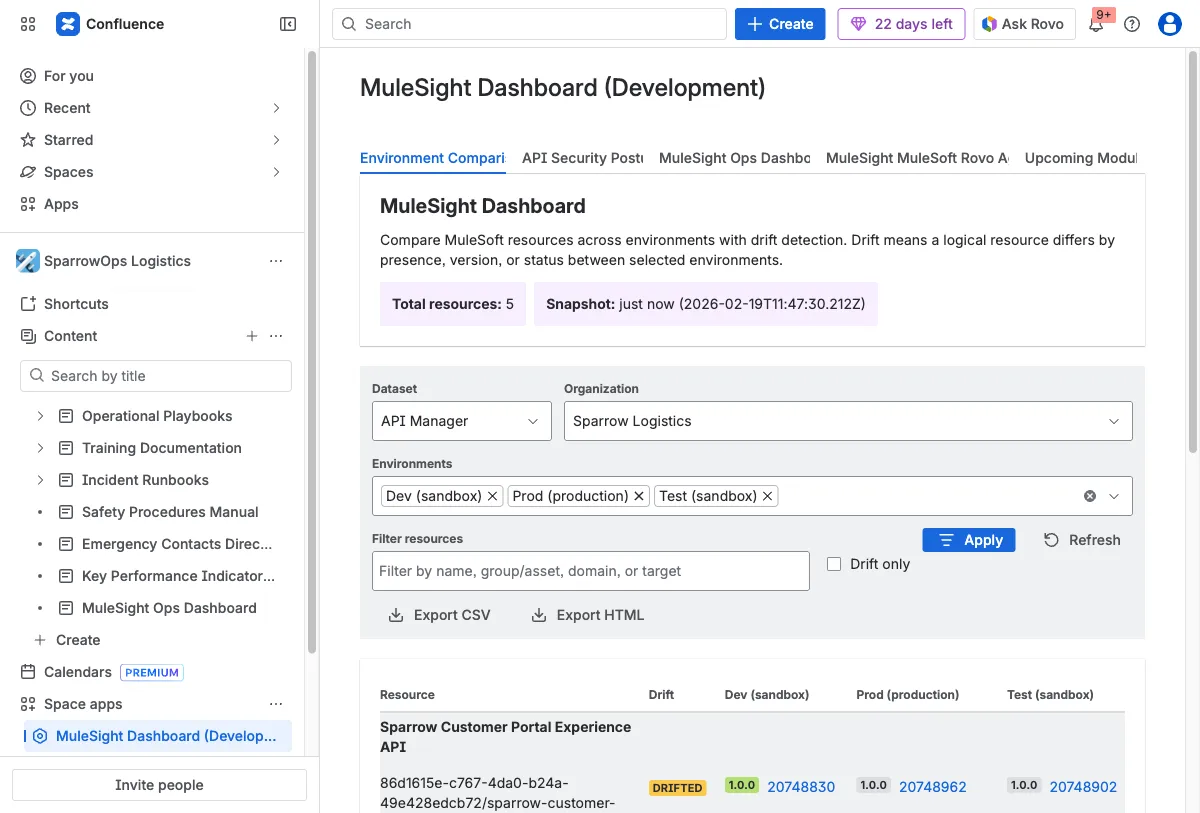
Step 2: Narrow to actionable drift
Section titled “Step 2: Narrow to actionable drift”Use Filter resources, enable Drift only, then click Apply.
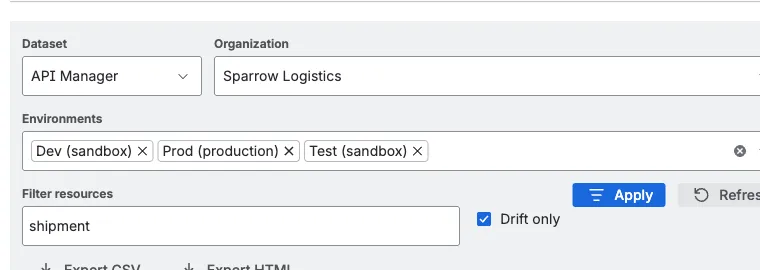
Step 3: Validate second dataset
Section titled “Step 3: Validate second dataset”Switch to CloudHub and repeat the same filter flow.
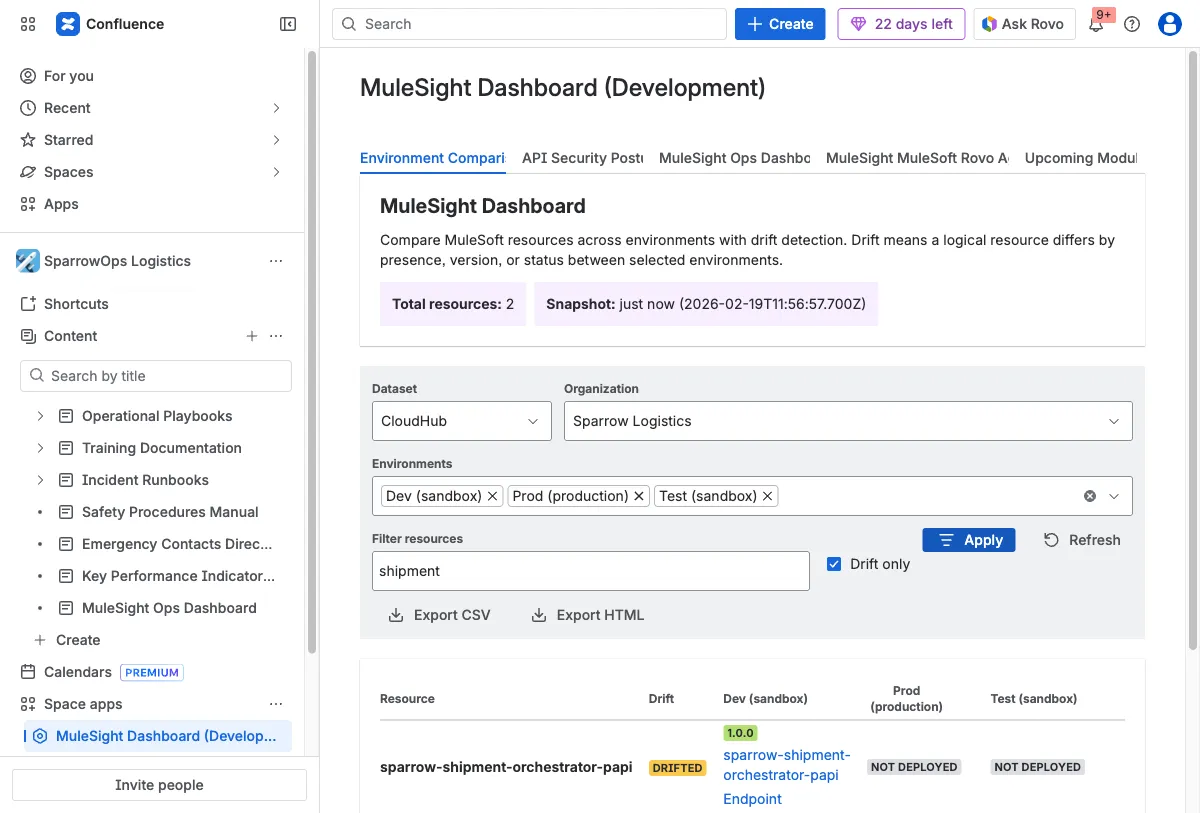
Step 4: Export handoff artifacts
Section titled “Step 4: Export handoff artifacts”Export CSV and HTML from the filtered state for sharing with engineering/release stakeholders.
How to Interpret a Row
Section titled “How to Interpret a Row”DRIFTED: difference exists in presence, version, or status.NOT DEPLOYED: logical resource is absent in that environment.- Hyperlinked ids/names open relevant MuleSoft console destinations.
Videos
Section titled “Videos”Filter, drift-only, refresh, export
Section titled “Filter, drift-only, refresh, export”Download video: Filter, drift-only, refresh, export
Dataset switch: API Manager <-> CloudHub
Section titled “Dataset switch: API Manager <-> CloudHub”Download video: Dataset switch: API Manager <-> CloudHub