
Configuration
Outcome
Section titled “Outcome”Configure MuleSight for one space and validate connectivity before users rely on dashboard, diagnostics, Rovo, or macro data.
Where to Configure
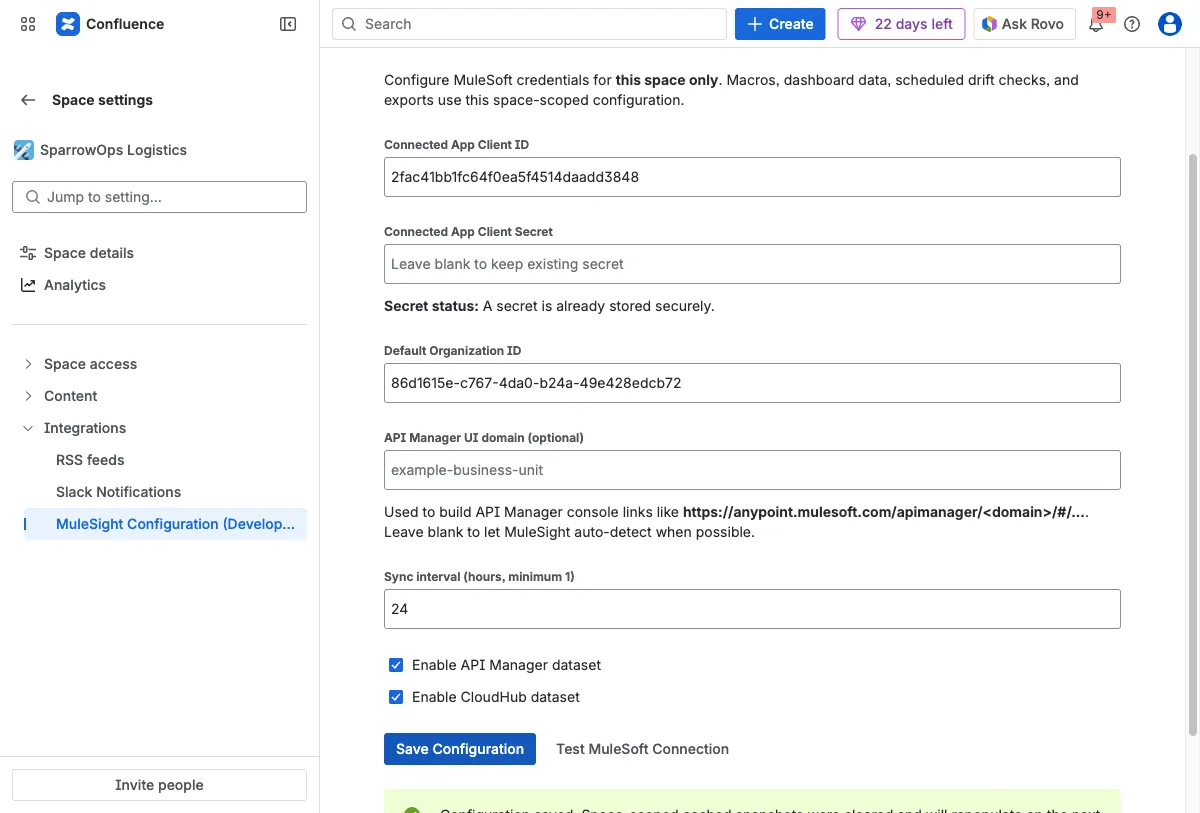
Section titled “Where to Configure”Open Space settings -> Integrations -> MuleSight Configuration.
Field Guide
Section titled “Field Guide”| Field | Why it matters |
|---|---|
| Connected App Client ID | Identifies the MuleSoft connected app MuleSight uses. |
| Connected App Client Secret | Authenticates MuleSight against MuleSoft APIs. |
| Default Organization ID | Sets org context for dashboard and macro fetches. |
| API Manager UI domain (optional) | Stabilizes generated API Manager console links in edge cases. |
| Sync interval (hours) | Controls scheduled sync cadence for this space. |
| Dataset toggles | Enables/disables API Manager and CloudHub collection per space. |
Guided Flow
Section titled “Guided Flow”Step 1: Enter configuration values and save
Section titled “Step 1: Enter configuration values and save”Fill client id, client secret, and default organization id. Keep both dataset toggles enabled unless you intentionally need partial data.
Step 2: Run connection test against saved credentials
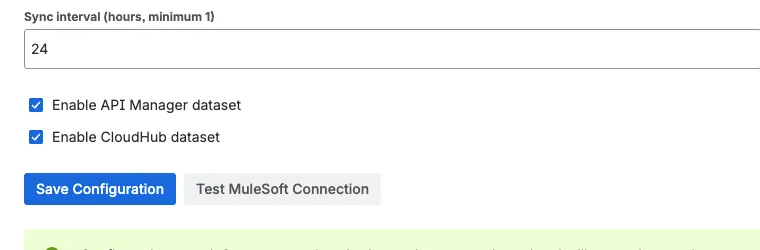
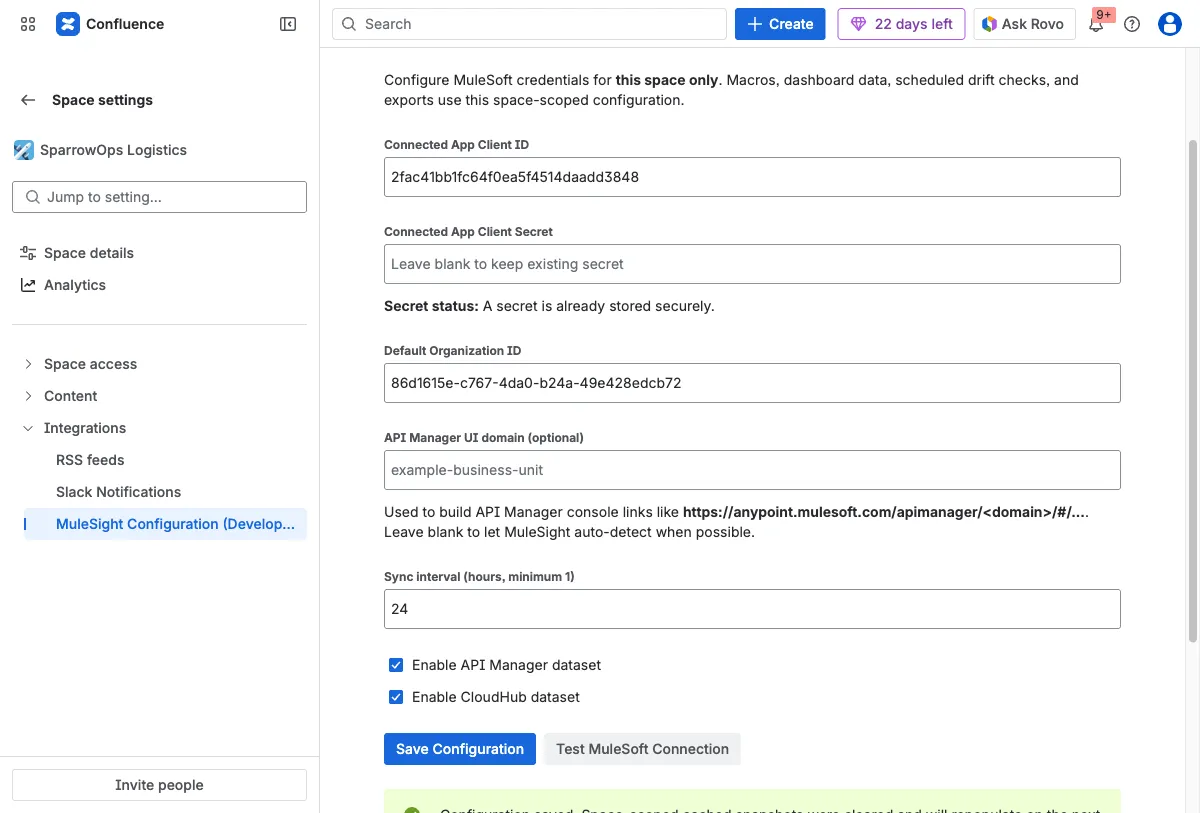
Section titled “Step 2: Run connection test against saved credentials”Click Test MuleSoft Connection and verify success details.
Step 3: Review required OAuth scope guidance
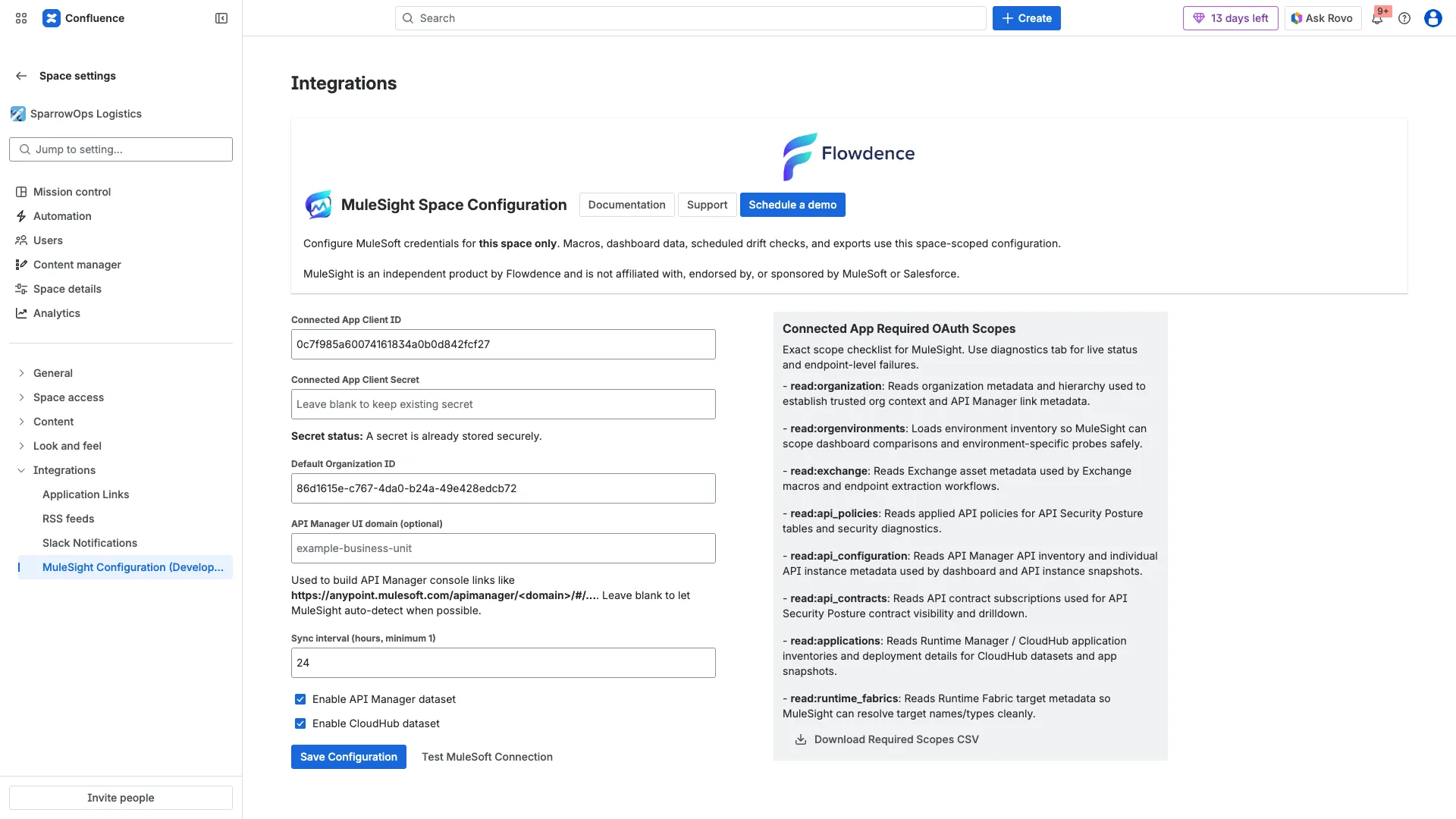
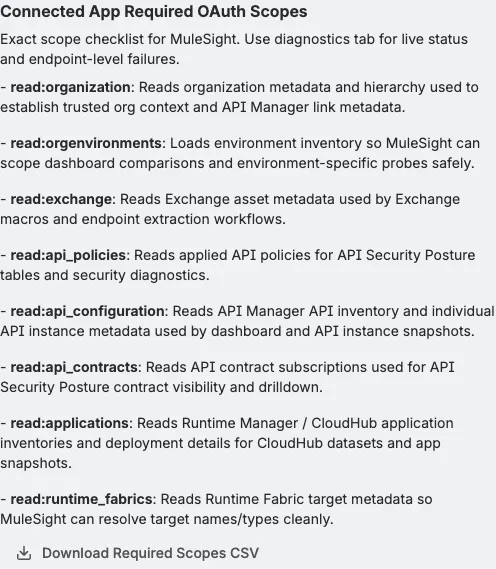
Section titled “Step 3: Review required OAuth scope guidance”Use the right-side Connected App Required OAuth Scopes panel to confirm each required scope and why it is needed.
Step 4: Export scope checklist for review
Section titled “Step 4: Export scope checklist for review”Click Download Required Scopes CSV and share the file with platform/security owners when validating connected app permissions.
Step 5: Validate dashboard and diagnostics
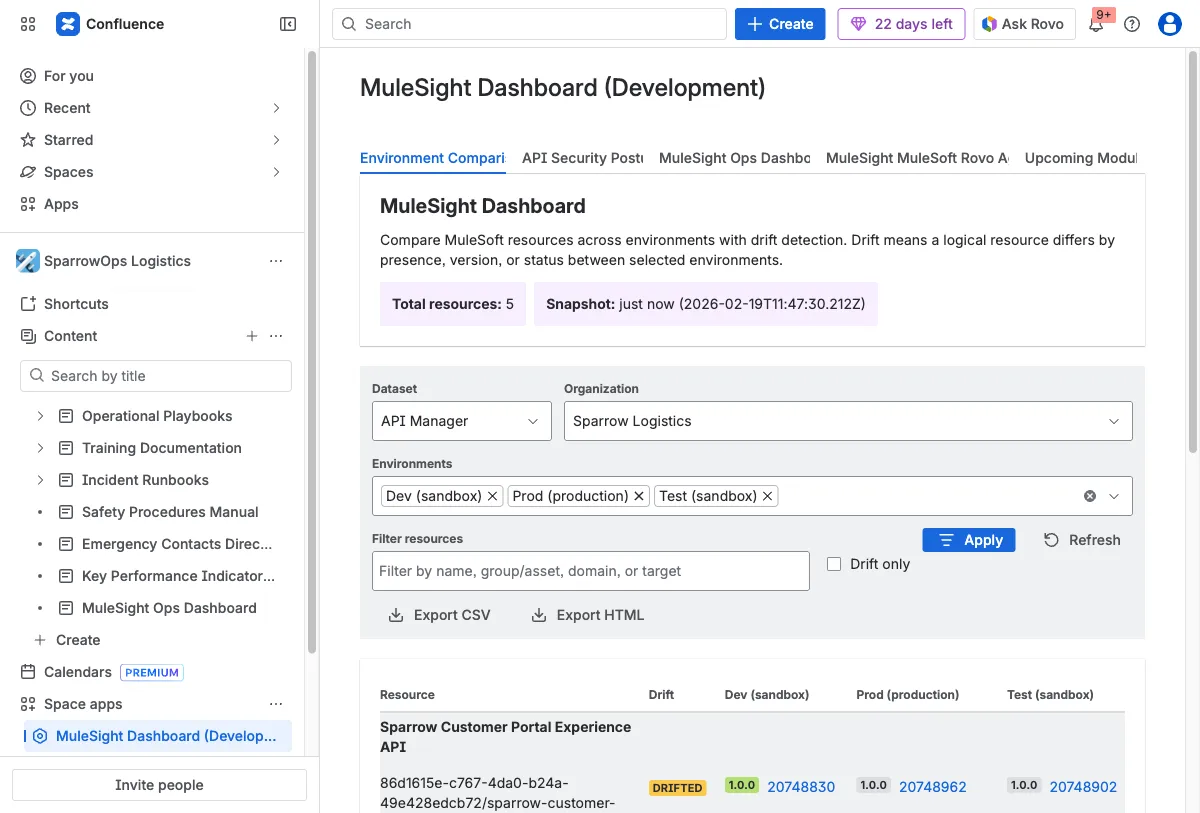
Section titled “Step 5: Validate dashboard and diagnostics”Open MuleSight Dashboard and check that data rows load in Environment Comparison and Diagnostics.
Common Setup Mistakes
Section titled “Common Setup Mistakes”- Saving credentials but skipping connection test.
- Using an incorrect org id and interpreting missing data as an app issue.
- Disabling a dataset and expecting both datasets in dashboard views.
- Ignoring diagnostics results after connected-app scope changes.
Video (Full)
Section titled “Video (Full)”Download full video: Required scopes panel and CSV flow
Download clipped video: Configuration quick clip