
Tutorial: First Time Space Setup
Scenario
Section titled “Scenario”You are enabling MuleSight in a space for the first time and need confidence that it is production-ready for daily use.
Time Estimate
Section titled “Time Estimate”10-15 minutes
Guided Flow
Section titled “Guided Flow”Step 1: Open configuration
Section titled “Step 1: Open configuration”Go to Space settings -> Integrations -> MuleSight Configuration.
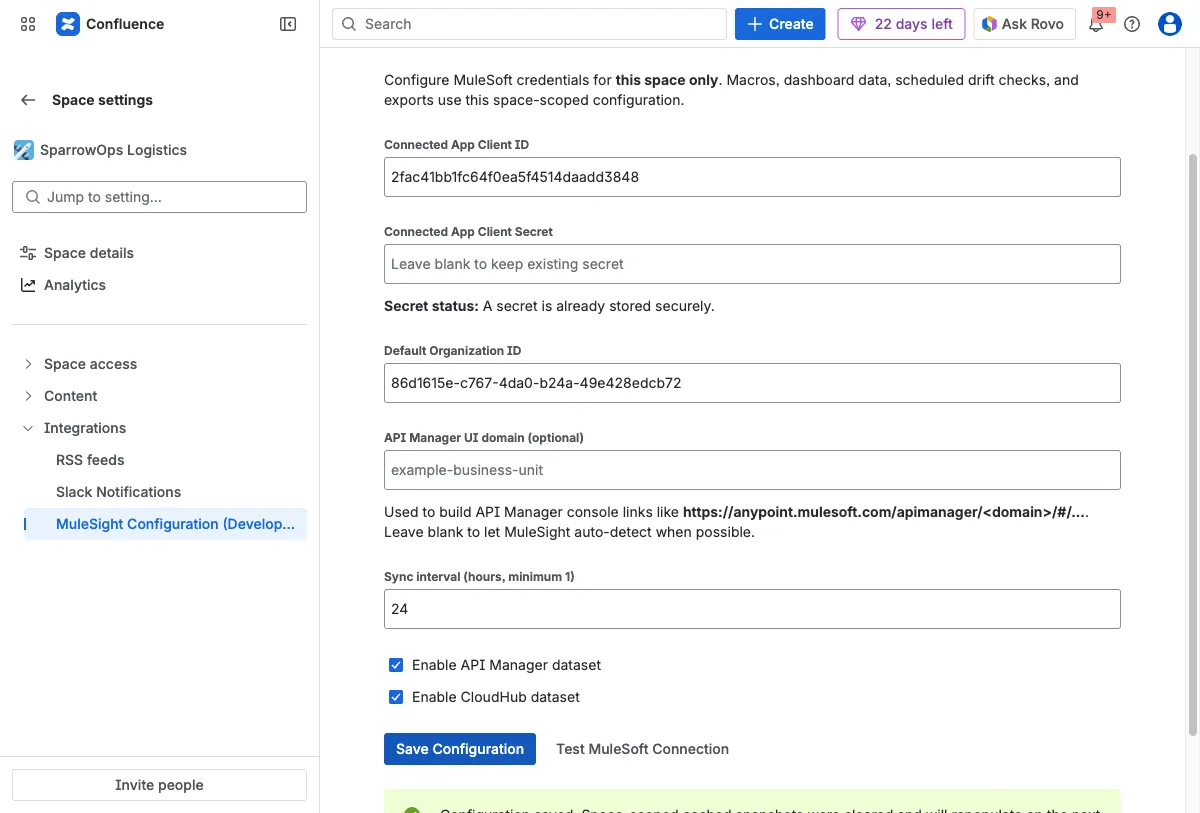
Step 2: Enter credentials and save
Section titled “Step 2: Enter credentials and save”Fill MuleSoft connected app values and default organization id, then save.
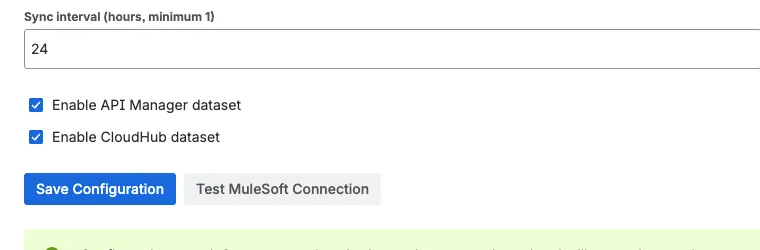
Step 3: Test connection
Section titled “Step 3: Test connection”Run Test MuleSoft Connection and confirm success details are present.
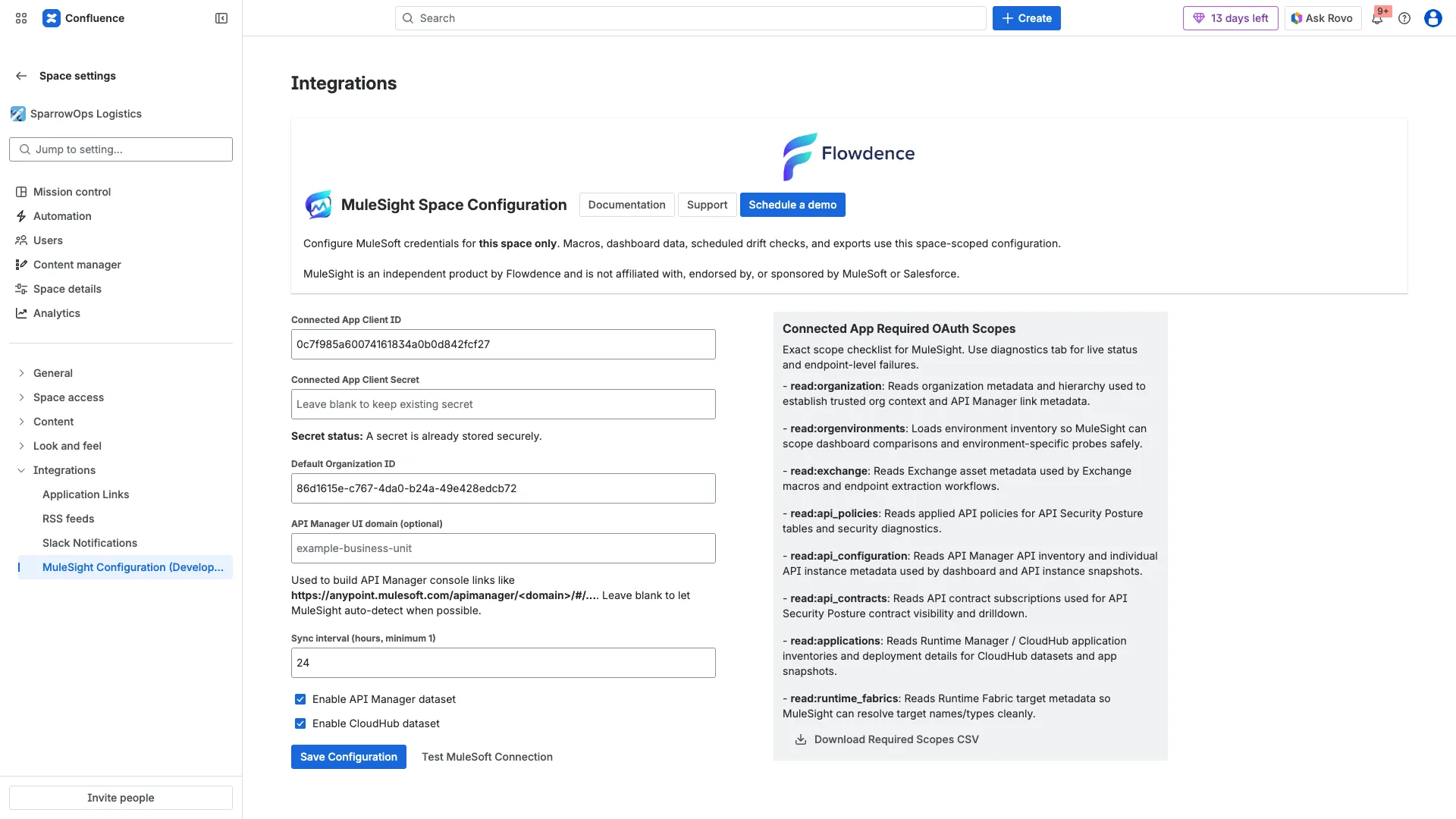
Step 4: Confirm required scopes checklist
Section titled “Step 4: Confirm required scopes checklist”Review the Connected App Required OAuth Scopes panel and download CSV if your security team needs a formal checklist.
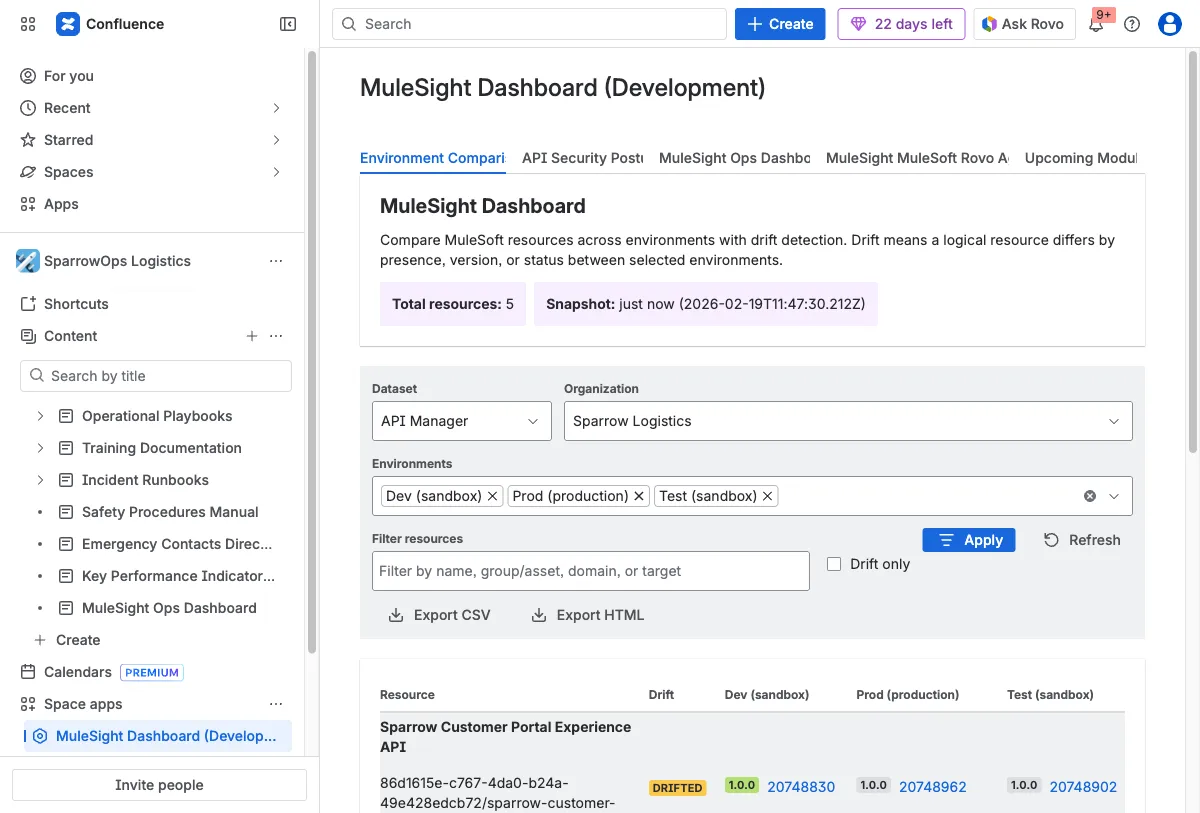
Step 5: Confirm dashboard and diagnostics data
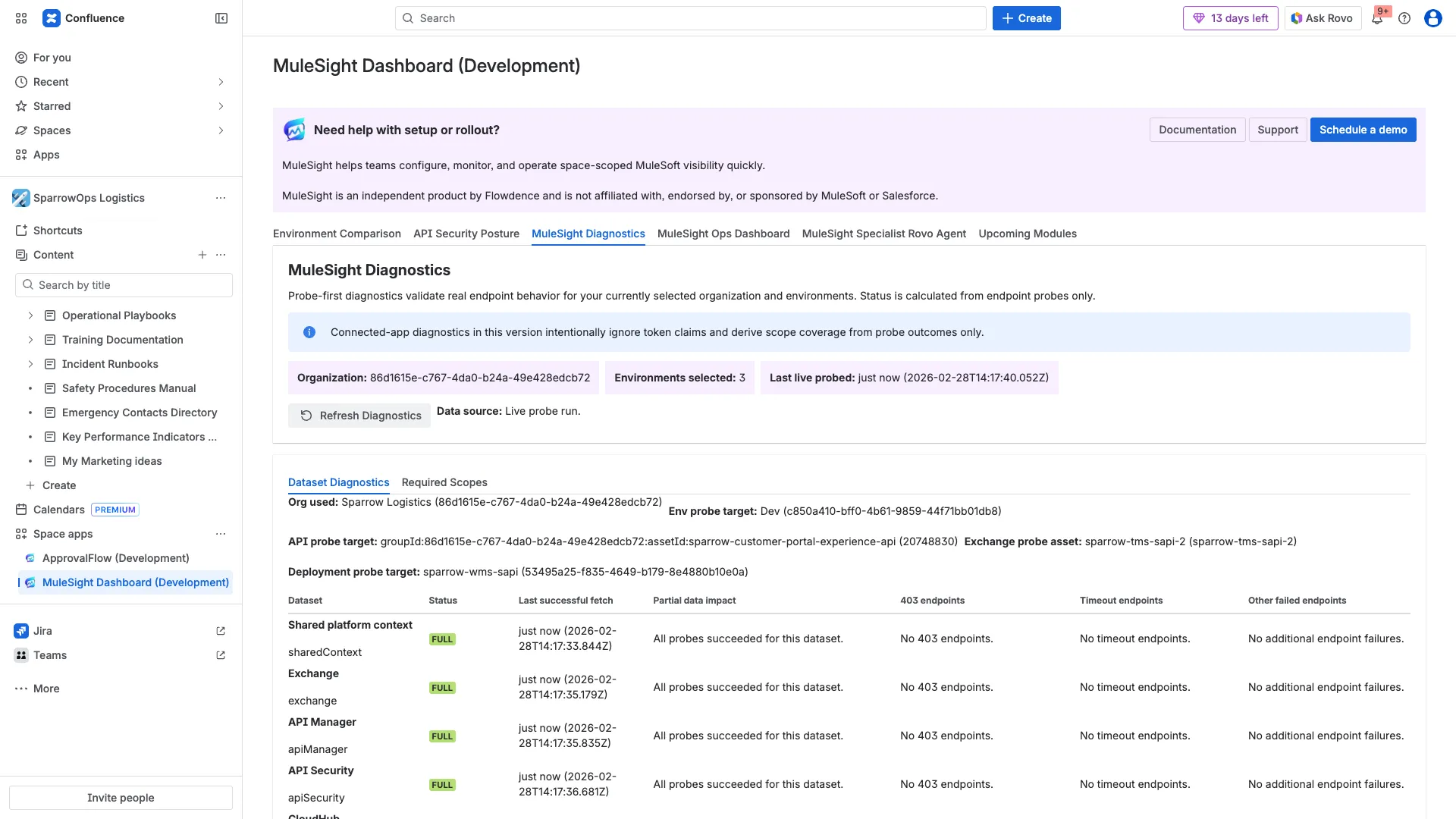
Section titled “Step 5: Confirm dashboard and diagnostics data”Open MuleSight Dashboard and verify rows load in Environment Comparison and Diagnostics.
Success Checklist
Section titled “Success Checklist”- Connection test shows success.
- Organization and environment count are populated.
- Environment Comparison contains real data rows.
- Diagnostics statuses show expected scope coverage.
Videos
Section titled “Videos”Download full configuration video: Configuration and connection test
Download full required-scope video: Required scopes panel and CSV flow
Download clipped required-scope video: Configuration quick clip